
|
علامه محمد تقی جعفری (رحمهالله علیه) میفرمودند:عده ای از جامعه شناسان برتر دنیا در دانمارک جمع شده بودند تا پیرامون موضوع مهمی به بحث و تبادل نظر بپردازند. موضع این بود: «ارزش واقعی انسان به چیست».برای سنجش ارزش خیلی از موجودات معیار خاصی داریم. مثلا معیار ارزش طلا به وزن و عیار آن است. معیار ارزش بنزین به مقدار و کیفیت آن است. معیار ارزش پول پشتوانهی آن است. اما معیار ارزش انسانها در چیست.هر کدام از جامعه شناسها صحبت هایی داشتند و معیارهای خاصی را ارائه دادند.بعد گفتند: وقتی نوبت به بنده رسید گفتم : اگر میخواهید بدانید یک انسان چقدر ارزش دارد ببینید به چه چیزی علاقه دارد و به چه چیزی عشق میورزد.کسی که عشقش یک آپارتمان دو طبقه است در واقع ارزشش به مقدار همان آپارتمان است.کسی که عشقش ماشینش است ارزشش به همان میزان است.اما کسی که عشقش خدای متعال است ارزشش به اندازه ی خداست.علامه فرمودند: من این مطلب را گفتم و پایین آمدم. وقتی جامعه شناسها صحبتهای مرا شنیدند برای چند دقیقه روی پای خود ایستادند و کف زدند.وقتی تشویق آنها تمام شد من دوباره بلند شدم و گفتم: عزیزان! این کلام از من نبود. بلکه از شخصی به نام علی (علیهالسلام) است. آن حضرت در نهج البلاغه میفرمایند: «قِیمَةُ کُلِّ امْرِئٍ مَا یُحْسِنُهُ» / «ارزش هر انسانی به اندازهی چیزی است که دوست میدارد».وقتی این کلام را گفتم دوباره به نشانه ی احترام به وجود مقدس امیرالمؤمنین علی (علیهالسلام) از جا بلند شدند و چند بار نام آن حضرت را بر زبان جاری کردند . . .حضرت علامه در ادامه میفرمودند: عشق حلال به این است که انسان (مثلا) عاشق 50 میلیون تومان پول باشد. حال اگر به انسان بگویند: «آی!!! پنجاه میلیونی!!!» . چقدر بدش میآید؟ در واقع میفهمد که این حرف توهین در حق اوست. حالا که تکلیف عشق حلال اما دنیوی معلوم شد ببینید اگر کسی عشق به گناه و معصیت داشته باشد چقدر پست و بی ارزش است! اینجاست که ارزش «ثار الله» معلوم می شود. ثار الله اضافه ی تشریفی است . خونی که در واقع آنقدر شرافت و ارزش پیدا کرده که فقط با معیارهای الهی قابل ارزش گذاری است و ارزش آن به اندازه ی خدای متعال است. |

غم قفس به کنار
آنچه عقاب را پیر می کند
پرواز زاغهای بی سر و پاست

Powered By
BLOGFA.COM
You can convert Acronis True Image Home 2010 TIB file to Windows backup VHD file to be able to boot from it
This article applies to:
Introduction
Acronis True Image 2010 backup (TIB) files can be converted to Windows backup VHD files. There are several reasons why Acronis recommends doing this:
- You can boot your machine from the converted VHD file to test if it is not corrupt and works fine;
- You can boot from the converted VHD for testing purposes. For example, to install a new application and see if it runs fine;
- You can keep the converted VHD file for emergency situations. For example, if your machine crashes and you need to get it up and running in no time, you can just boot from the VHD file.
- In Windows 7, the VHD file can be mounted as an additional drive.
(!) If you are going to boot from the converted VHD file, it must contain either Windows 7 Ultimate or Windows 7 Enterprise Edition.
(!) If you are going to mount the VHD file in Windows 7, there can be non-system Windows partitions.
(!) Any changes you make to the booted or mounted VHD file are saved to it. If you boot from the VHD file and make changes to the data that was not backed up (e.g. delete a file from drive that was not backed up), these changes will affect your live system.
(!) File backup (as opposed to disk/partition backup) cannot be converted to VHD.
(!) You can only boot the same machine the backup of which was converted to VHD. Booting other machines from the same VHD files will fail.
(!) You cannot run the converted VHD file as a virtual machine.
Solution
- Run Acronis True Image Home 2010. Click Tools & Utilities -> Convert Acronis Backup:

- Select your Acronis True Image Home 2010 TIB file:


- Select the target location for the VHD file to which you are converting:

- Click Proceed:

- The operation will proceed to completion:


Now you have your VHD file.
More information
See also:
Step-by-step instructions on how to convert a backup archive (.tib) to a virtual machine
This article applies to:
- Acronis Backup & Recovery 10 Advanced Server
- Acronis Backup & Recovery 10 Server for Windows (Standalone)
- Acronis Backup & Recovery 10 Advanced Server - Small Business Server Edition
- Acronis Backup & Recovery 10 Advanced Workstation
- Acronis Backup & Recovery 10 Workstation (Standalone)
- Acronis Backup & Recovery 10 Advanced Server - Virtual Edition
Introduction
You can convert a backup archive (.tib) of Acronis Backup & Recovery 10 to a virtual machine.
(!) This functionality is only available in Windows. It is not available under Acronis Bootable Media.
Conversion to virtual machine is supported for backups of the following operating systems:
- Windows 2000
- Windows XP Professional SP3 x32 and x64, Windows XP Home
- Windows 2003 Server
- Windows Vista (all editions)
- Windows Server 2008 and 2008 R2 (all editions)
- Windows 7
Solution
- Connect Acronis Management console to a machine where Acronis Agent for Windows, Acronis Agent for Hyper-V or Acronis Agent for ESX/ESXi is installed by clicking Manage this machine or Manage a remote machine:

- Do any of the following:
- Click Recover to open the Recover data page:

- Use the Navigation pane to navigate to the vault where the archive is stored. Select the archive and then select the disk or volume backup you want to convert. Click Convert to VM:

(!) If you are connected to Acronis Management Server, option Convert to VM will not be available. Select Recover instead.
- In Data type, select Disks or Volumes depending on what you need to convert;
- In Content, select the disks to convert or the volumes with the Master Boot Records (MBR) of the corresponding disks:

- In Recover to, select New virtual machine:

- In VM server, select the type of the new virtual machine to be created or on which virtualization server to create the machine:

See also Acronis Backup & Recovery 10: Limitations on Converting TIB to Citrix XenServer VHD;
- In VM name, enter the name for the new virtual machine;
- [Optionally] Review the Virtual machine settings and make changes if necessary. Here you can change the path to the new virtual machine;
- The same type of machines with the same name cannot be created in the same folder. Change either the VM name, or the path if you get an error message caused by identical names.
- Select the destination disk for each of the source disks or source volumes and MBRs;
On a Microsoft Virtual PC, be sure to recover the disk or volume where the operating system's loader resides to the Hard disk 1. Otherwise the operating system will not boot. This cannot be fixed by changing the boot device order in BIOS, because a Virtual PC ignores these settings.
- In When to recover, specify when to start the recovery task;
- [Optionally] Review Recovery options and change the settings from the default ones, if need be. You can specify in Recovery options -> VM power management whether to start the new virtual machine automatically, after the recovery is completed. This option is available only when the new machine is created on a virtualization server;
- Click OK. If the recovery task is scheduled for the future, specify the credentials under which the task will run;
- You will be taken to the Backup plans and tasks view where you can examine the state and progress of the recovery task.


More information
See also:
1. Enable Encryption
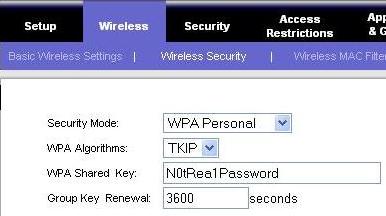
Let us start with the basics. Most of the wireless router has the encryption disabled by default. Make sure to enable either WPA or WPA2 wireless encryption. Click on Wireless -> Wireless Security , to enable the encryption and assign a password as shown in Fig-1. Following are the different wireless encryption options available.
- WEP (Wired Equivalent Protection) 64-bit and 128-bit: WEP is an old wireless encryption standard. Never use WEP encryption, which can be hacked within seconds.
- WPA (Wi-Fi Protected Access): WPA-PSK is also refered as WPA-Personal. This is a new version of wireless encryption standard and more secure than WEP. Most of the wireless adapters on your laptop will support WPA.
- WPA2: This is the latest wireless encryption standard that provides the best encryption. Always use WPA2, if both your wireless router and laptop wireless adapter supports it.
2. Change the SSID name
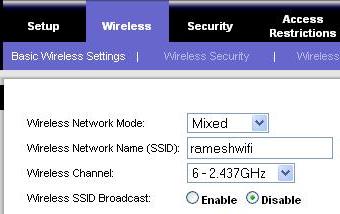
SSID (Service Set Identifier) refers to the name of your wireless connection, that you see on the “Available Wireless Connections” list from your laptop while connecting. Changing the wireless name itself doesn’t offer any protection, but usually discourages a hacker, as they know that you’ve taken some steps to secure your wireless connection. Click on Wireless -> Basic wireless settings -> Change the “Wireless Network Name (SSID):”, as shown in the Fig-2.
3. Disable SSID broadcast
You can avoid your wireless name from getting displayed on “Available Wireless Connections” on all your neighbors laptop. This can be done by instructing the wireless router not to broadcast the name to everybody. Once you’ve disabled the SSID broadcast, the first time when someone wants to connect to your wireless network, you need to provide the name to them. Click on Wireless -> Basic wireless settings -> Click on the Disable radio-button next to “Wireless SSID Broadcast”, as shown in Fig-2.
4. Enable MAC filtering
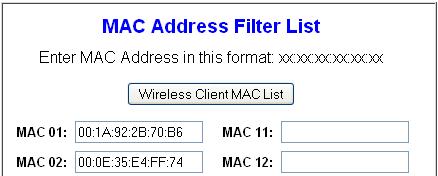
Even after you have performed the above item#1 – #3, a very determined hacker may still get access to your network. The next security step is to allow wireless access only to your trusted laptops, by allowing wireless connection only to known MAC address. MAC (Media Access Control) address is an unique identifier attached to most network adapters. In this case, this should be the unique identifier of your laptop wireless adapter. On Linux, do ifconfig from the command prompt to get wireless hardware address. On windows, do ipconfig /all from the command prompt to identify the MAC address as shown below.
C:>ipconfig /allEthernet adapter Wireless Network Connection:Connection-specific DNS Suffix . : socal.rr.comDescription . . . . . . . . . . . : Dell Wireless 1390 WLAN Mini-CardPhysical Address. . . . . . . . . : 00:1A:92:2B:70:B6
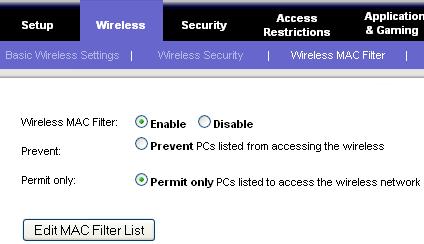
Click on Wireless -> Wireless MAC filter -> Click on Enable radio-button next to “Wireless MAC filter” -> Click on “Permit only PCs listed to access the wireless network” radio-button, as shown in Fig-3.
5. Change password for Web Access
The default password for wireless web access are the same for the specific model of a wireless router assigned by the manufacturer. Change the default password of the wireless router web access to a strong password. Follow The Ultimate Guide For Creating Strong Passwords to choose a strong password. Click on Administration -> Management, to change the password as shown in Fig-5 below.
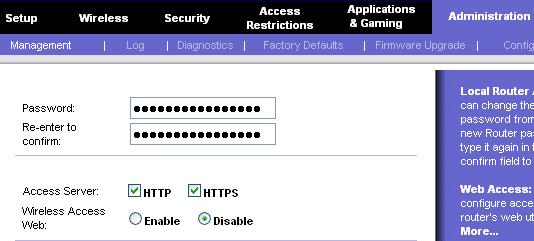
Fig-5 Change password and disable wireless web access
6. Disable administrative access through web
As part of the contest we conducted recently, we got 130 comments from the geeky readers who choose their favorite system monitoring tools.
Based on this data, the top spot goes to.. drum roll please..
Nagios
If you are new to any of the top 5 tools mentioned here, please read the rest of the article to understand more about them.

Fig: Favorite System Monitoring Tool Voting Results
1. Nagios – Network Monitoring Software

- Home Page: http://www.nagios.org
- Author: Ethan Galstad
- Latest stable release: 3.2
- License: Open Source. GNU.
- Read more about Nagios at Wikipedia.
Nagios Core 3 eBook is the only guide you’ll ever need to monitor everything, be proactive, and sleep well.
2. Cacti – Network Monitoring Software

Cacti also supports plugin architecture. Some admins like the powerful graphing feature provided by Cacti, they use both Nagios and Cacti in their environment as the network monitoring tools.
- Home Page: http://www.cacti.net
- Latest stable release: 0.8.7e
- License: Open Source. GNU.
- Read more about Cacti at Wikipedia.
3. Top (and other top variations)

- Top Command – Few of you have mentioned top command as your favorite monitoring tool

- ntop (Network Top) – Ntop is a free network monitoring software. ntop displays network usage information in a similar fashion to top command output. You can also create HTML output file (dump) of the network status using ntop. Apart from the command line, you can also launch the web version of the ntop once you’ve started the ntopd service and visit http://{ip-address}:3000 from browser.
- htop (interactive process viewer for Linux) – htop is similar to top command with few additional features. The main difference is that you can use mouse to interact with the htop command output.
4. Zabbix

Zabbix has the following three main modules:
- Server (written in C)
- Agents (written in C)
- Frontend (PHP and Javascript)
Additional information about Zabbix:
- Home Page: http://www.zabbix.com
- Latest stable release: 1.6.6
- License: Open Source. GNU.
- Developed by: Zabbix SIA (Private company)
- Read more about Zabbix at Wikipedia
5. Munin

- Home Page: http://munin.projects.linpro.no
- Latest stable release: 1.2.6
- License: Open Source. GNU.
- Read more about Munin at Wikipedia
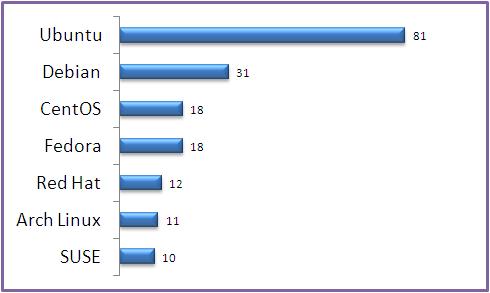
Fig: Favorite Linux Distribution Voting Results
1. Ubuntu

Like most of you, Ubuntu is my #1 choice for desktop Linux. I use it both at home and work. Ubuntu is the #1 in the Linux desktop market and some use Ubuntu for the servers also. Ubuntu offers the following three editions.
- Ubuntu Desktop Edition
- Ubuntu Server Edition
- Ubuntu Notebook Remix
Additional Details:
- Home Page: http://www.ubuntu.com
- Ubuntu Download Page
- Created by: Canonical Ltd., (who also provides commercial support, if you need it)
- Used As: Desktop and Server
- Latest Version: Ubuntu 9.04
- Read more about Ubuntu Distribution at wikipedia.
Refer to our Ubuntu Tips and Tricks article series.
2. Debian

Debian is also called as Debian GNU/Linux, as most of the basic OS tools comes from the GNU Project. Lot of other famous distributions are based on Debian, which includes our #1 distro Ubuntu and many others — such as Knoppix, Linspire, Damn Small Linux etc.,
Additional Details:
- Home Page: http://www.debian.org/
- Debian Download Page
- Created By: Ian Murdock
- Latest Version: Debian 5.0.1
Read more about Debian Distribution at wikipedia.
3. Fedora

Fedora is sponsored by Red Hat. If you are interested in experimenting with the the leading technologies, you should use fedora, as the release cycle is very short and fedora tends to include the latest technology software/packages in it’s distribution.
Additional Details:
- Home Page: http://www.fedoraproject.org/
- Fedora Download Page
- Created by: Fedora Project (sponsored by Red Hat)
- Latest Version: Fedora 11
- Based On: Red Hat Linux
Read more about Fedora Distribution at wikipedia.
4. CentOS

From the CentOS website: CentOS 2, 3, and 4 are built from publically available open source SRPMS provided by a prominent North American Enterprise Linux vendor. CentOS is designed for people who need an enterprise class OS without the cost or support of the prominent North American Enterprise Linux vendor.
Additional Details:
- Home Page: http://www.centos.org/
- CentOS Download Page
- Created by: CentOS Project
- Latest Version: CentOS 5
- Based on: Red Hat Linux
Read more about CentOS Distribution at wikipedia
5. Red Hat

Additional Details:
- Home Page: http://www.redhat.com/
- Red Hat Download Page
- Created by: Red Hat
- Latest Version: Red Hat Enterprise Linux 5
Read more about Red Hat Distribution at wikipedia.
Awesome Linux Articles
Following are few awesome 15 examples articles that you might find helpful.
- Get a Grip on the Grep! – 15 Practical Grep Command Examples
- Linux Crontab: 15 Awesome Cron Job Examples
- Mommy, I found it! — 15 Practical Linux Find Command Examples
- 15 Examples To Master Linux Command Line History
- Unix LS Command: 15 Practical Examples
Note: To get high quality free Linux articles, subscribe to the geek stuff.